3. Initial labeling
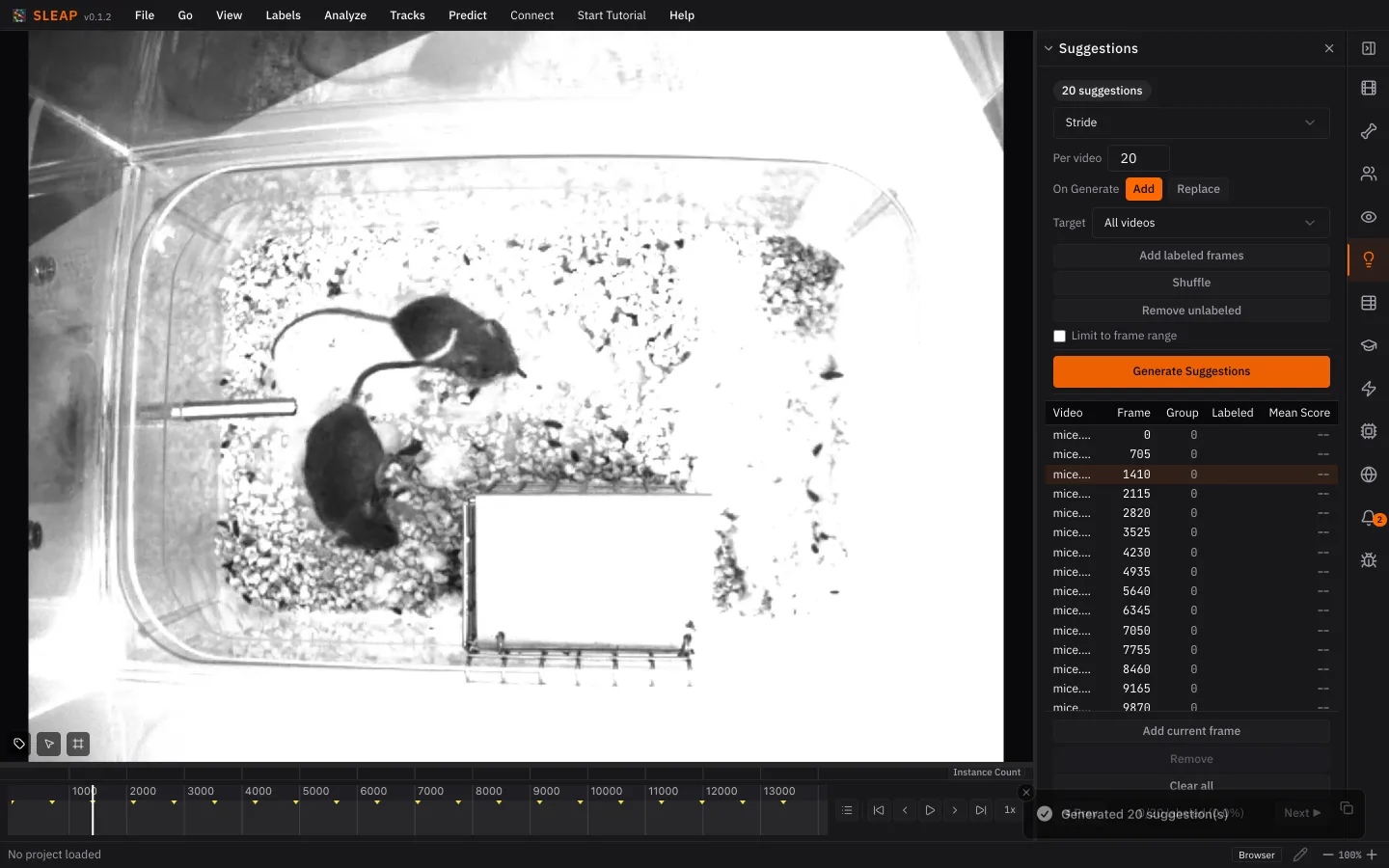
Generate suggestions
Suggestions are frames picked for you to label, spread across the video so your labels cover all of it. Neighboring frames look almost the same, so labeling frames in a row teaches the model little.1
- Open the Suggestions panel.
- Keep Method: Stride and Per video: 20, and click Generate.
Draw the skeleton
A skeleton is the body parts you track (nodes) and the lines between them
(edges). For the mice, use three nodes: head, torso, and tailbase.
- Go to frame 1410, one of the suggested frames: Cmd+J / Ctrl+J opens Go to Frame.
- In the Skeleton panel, click Draw skeleton on frame.
- Click on one mouse to place each node. Double-click a node to rename it.
- Click Next: Connect edges →. Drag two strokes, each starting at
torso: one to
head, one totailbase. - Click Done, then Create instance.
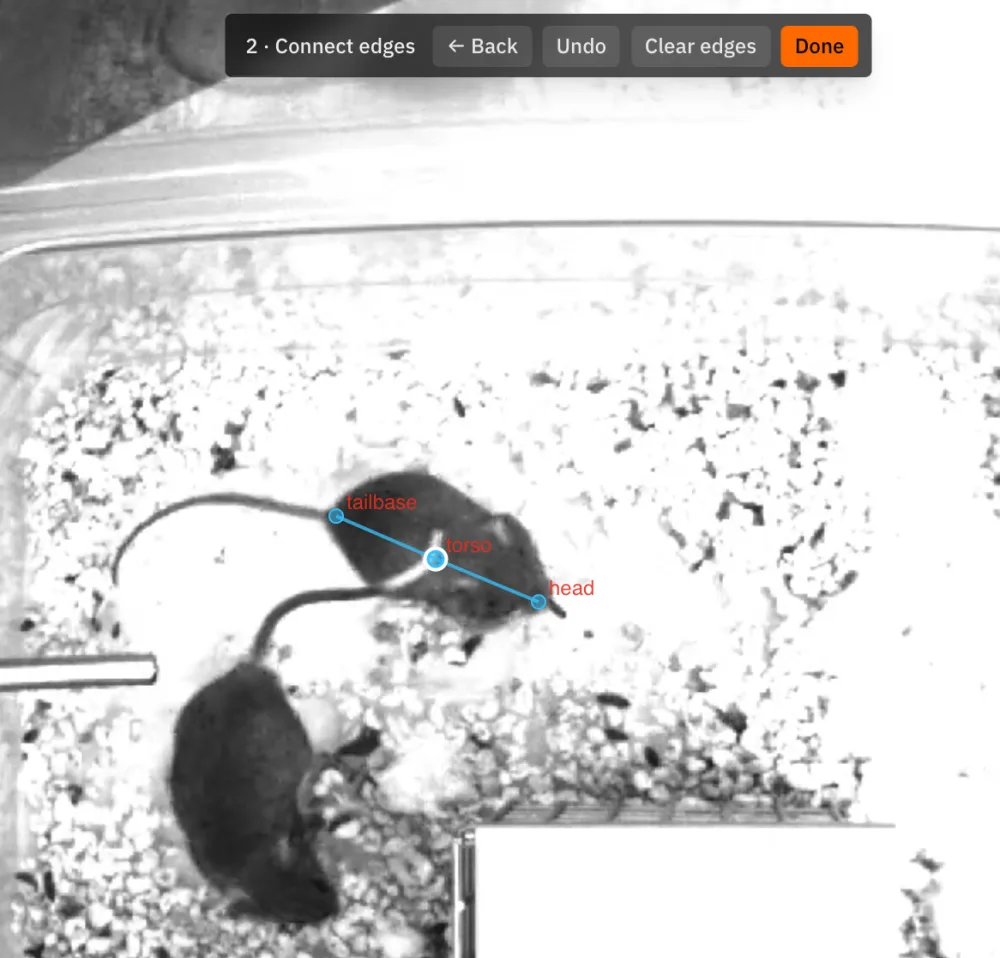
Draw the skeleton only once. It's a template: each mouse gets its own copy.
Label the frame
An instance is one animal's copy of the skeleton. Label every mouse on frame 1410:
- Drag the new instance's nodes onto the first mouse.
- For the second mouse, right-click the frame and choose Add Instance ▸ Best (or press Cmd+I / Ctrl+I), then drag its nodes into place.
- If a body part is hidden, mark it non-visible: hover over the node and press V.
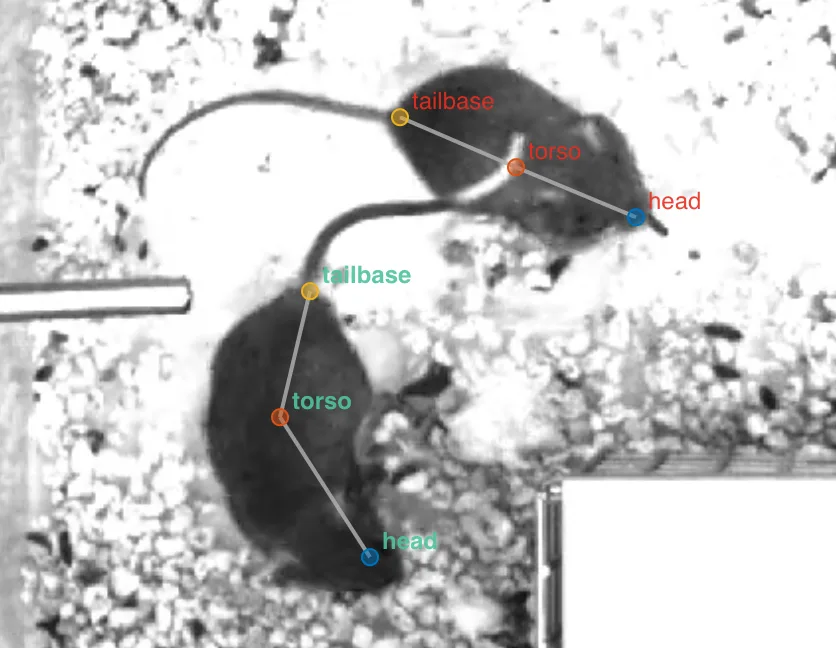
Save with Cmd+S / Ctrl+S, and save often as you label.
Labeling faster
- Zoom: hold Ctrl and scroll (Ctrl on macOS too).
- Move a whole instance: hold Alt and drag any of its nodes, or press Shift+A to select them all, then drag.
- Rotate an instance: with it selected, hold Alt and scroll.
- See nodes better: View ▸ Node Marker Size makes nodes bigger, and View ▸ Edge Style ▸ Wedge shows which way each edge points.
Note
One frame is enough to see the whole workflow. A real project needs more: label more suggested frames before you train for real.
See Labeling Instances for every labeling tool.
Next up: Training a model
-
Stride picks evenly spaced frames. Other methods pick frames at random, or group frames by how they look and pick from each group, so you label a visually diverse set. See Suggestions. ↩