7. Proofreading
No automated tracker is perfect, so always check its output before analyzing it. The most common error is an identity swap: two mice cross paths and their tracks trade places. A single swap matters a lot, because every frame after it carries the wrong identity.1
Set up the view
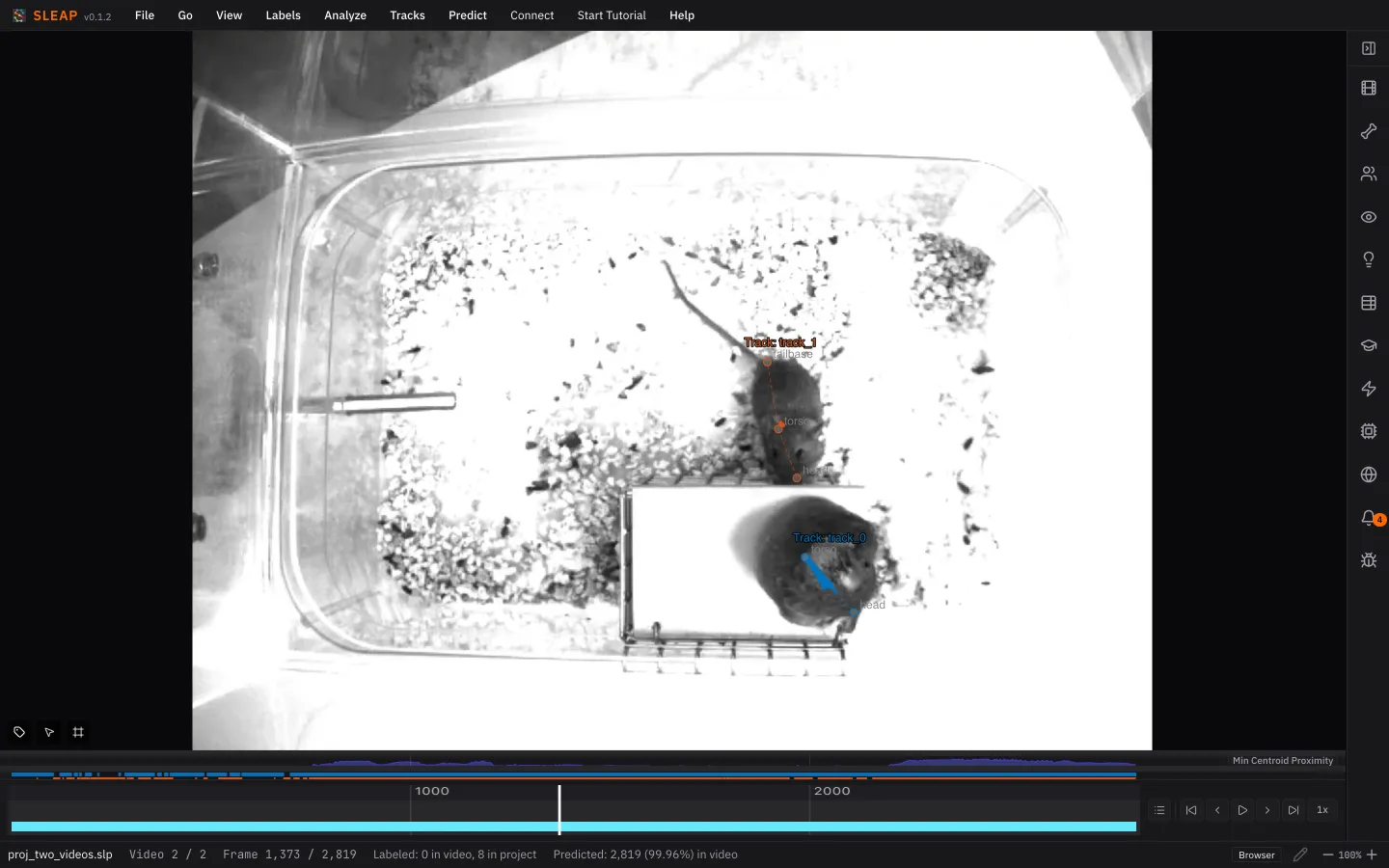
- Turn on View ▸ Color Predicted Instances. Predictions are drawn yellow until you do.
- Set View ▸ Apply Distinct Colors To ▸ Tracks, so each mouse is colored by its track.
- Optionally, set View ▸ Trail Length to 50 to draw each mouse's recent path. A trail that jumps from one mouse to the other is a swap.
Find swaps
- Tracks ▸ Seekbar Header ▸ Min Centroid Proximity plots how close the mice get. Dips are where they come close, which is where swaps happen.
- Step through those frames and watch for a color change on a mouse.
- Cmd+E / Ctrl+E jumps to the next frame where a new track appears, which usually means a track broke.
Fix them
- Turn on Tracks ▸ Propagate Track Labels, so a fix carries through to the end of the video.
- Go to the first frame after the swap.
- Press Cmd+T / Ctrl+T to swap the two mice's tracks back.
Save the result as a new version with File ▸ Save As… (Cmd+Shift+S / Ctrl+Shift+S). Keeping the version from before proofreading lets you compare the two later.
Check your labels too
Label Quality Check flags labels that are probably wrong, such as left/right swaps and duplicates. Instance Size Distribution shows how big your animals are, which helps you pick a crop size for top-down models.
See Tracks for more tools.
Next up: Exporting the results
-
Tracking links each frame to the one before it. Once two mice trade tracks, nothing later swaps them back, so the error runs to the end of the video or until the next swap. ↩