6. Tracking a new video
A trained model is most useful on videos you haven't labeled. Run it on a new video of the same mice, and link each mouse's poses across frames into a track so you know which mouse is which.
Add the new video
- Download
mice_new.mp4(5 MB, one minute) from the tutorial data. - In the Videos panel, drag it onto the dropzone (or click the dropzone to browse), then click Import.
- Click
mice_new.mp4in the list to switch to it.
The model learned from mice.mp4; this video is from the same setup.
Run inference with tracking
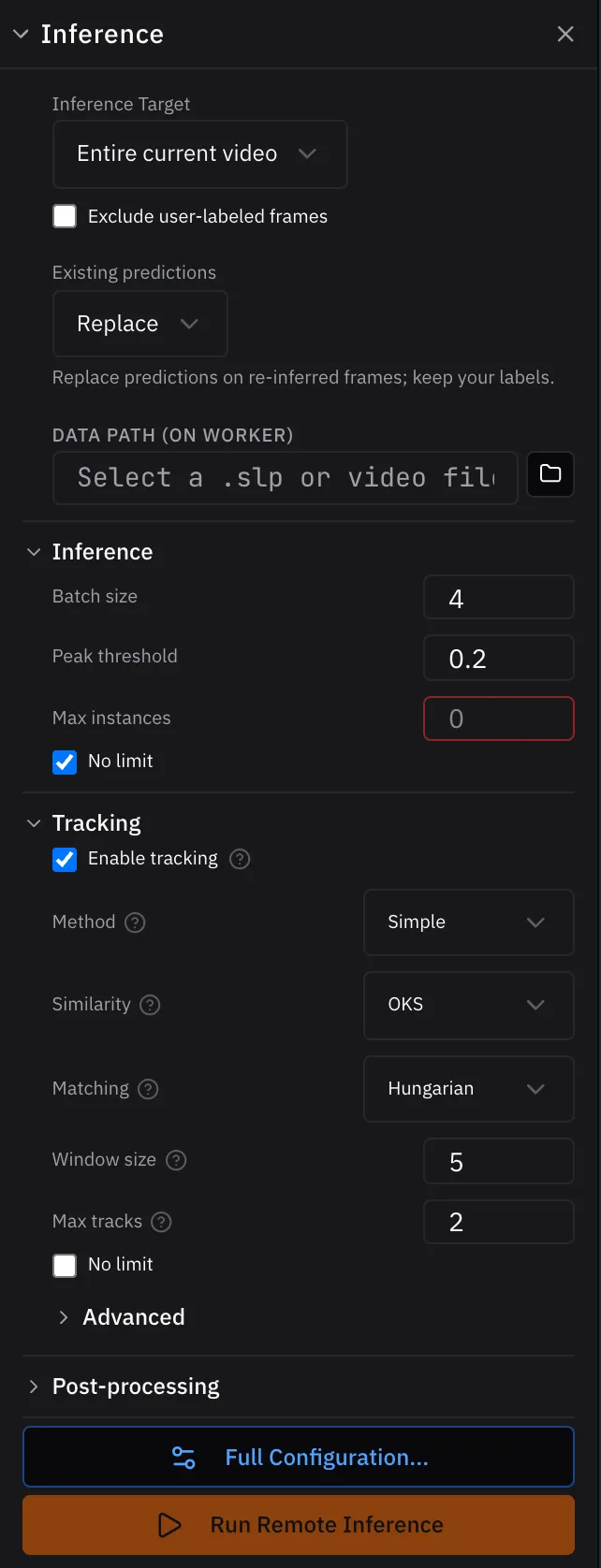
- Open the Inference panel. On the desktop, your latest trained models are already picked.
- Set Inference Target to Entire current video.
- Check Enable tracking and keep Method: Simple. Under Max tracks, uncheck No limit and set it to 2, one per mouse.
- Click Run Inference.
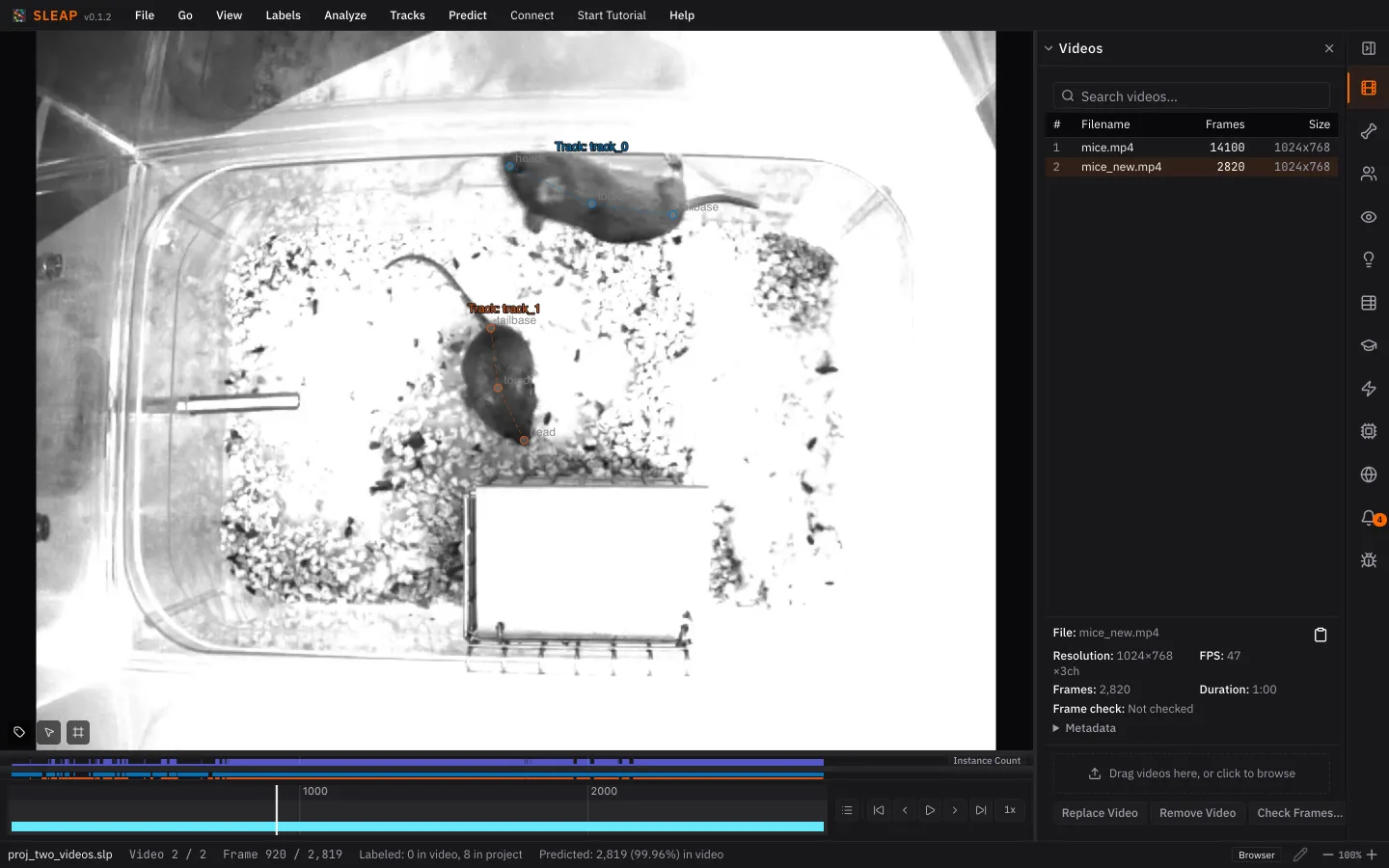
When it finishes, play or scrub through the video. Each mouse gets its own track, and the bars above the seekbar show where each track is present.
Short on time? Use the pretrained models
The tutorial data includes two trained models in
new_data/models:
a centroid and a centered-instance model. Download both folders and, in the
desktop app, add each with Add in the Models section, then run
inference the same way. They were trained in an older version of SLEAP;
sleap-nn runs them as they are.
See Inference for how tracking works and what each setting does.
Next up: Proofreading